|
Edit User/Modify Access Screen
|
The Edit User - Modify Access screens are used to locate a user specific to a provider organization, then add, delete, or edit that user's information.
Within the "Edit User - Search" screen, an authorized user will have the ability to find a user in an application, an organization and the organization to which he/she has authority. This function can also be used to view users. The search will be based on the following:
-
Organization Selection - Search field and Search string specified for the name of the organization (State User) and 'Organization' drop-down menu (other users).
-
Organization Account Status - Active or Disabled
-
Username or Last Name or First Name
The search results returned will be displayed as:
-
A list of users in an application (registry or inventory), an organization type (hospital, school, etc.), and organization to which the Administrator has authority (the organization where the user works).
-
A list of all users to which the Administrator has authority.
-
A list of users that have been disabled.
-
A list of users to select from, for a particular user from the list and display detailed information.
|
Field Name
|
Description
|
|
Organization Selection
|
Select the specific organization in the Search String, that the user belongs to or select 'All Orgs' if organization is not known.
|
|
Organization Account Status
|
Select the checkbox if you need to filter for organizations which are only Active or only Disabled.
|
|
Username
|
Specify the Username of the individual. The Username box must contain at least one character.
|
|
Last Name
|
To find a particular user the "Last Name" box must contain at least one character. Alphanumeric and special characters are allowed as search values.
|
|
First Name
|
To find a particular user the "First Name" box must contain at least one character. Alphanumeric and special characters are allowed as search values.
|
|
MI
|
Specify the Middle Initial of the individual.
|
|
Current Status
|
Allows the administrator to filter the results on any combination of the listed statuses: Active and Disabled.
|
|

|
A list of the matched users will be displayed when the Find button is clicked.
|
|

|
Refreshes the search results list when the Refresh button is clicked.
|
Back to Top
Within Edit User, an authorized user will have the ability to maintain a user in an application and organization to which he/she has authority. Administrators also can maintain users who had past access to their application(s)/organization(s).
|
Field Name
|
Description
|
|
User Last Name
|
Required. Minimum length is 1; maximum length is 20.
|
|
User First Name
|
Required. Minimum length is 1; maximum length is 30.
|
|
User Middle Initial
|
Length is 1; any character allowed.
|
|
User Name
|
Automatically populated when the user information is added.
|
|
Email
|
Required. Minimum length is 1; maximum length is 80. Must be a unique email. Users with the same email address will not be accepted.
|
|
Re-enter Email
|
Required. Should match Email entered in the previous field.
|
|
Phone Number
|
(xxx) xxx - xxxx
|
|
Extension
|
Up to 7 digits
|
|

|
Clicking on Save will validate the information entered on the screen. A message will appear at the top indicating if the user was saved or if there are missing required fields.
|
|

|
Clicking on Cancel will discard any changes made on the screen. A confirmation message box will appear asking if you wish to save your changes. Pressing OK on the message box will save the changes unless there are missing fields required; Cancel will take you to the "Edit User" search page.
|
Back to Top
Within Modify Access, an authorized user will have the ability to add or remove a user's access to applications and organizations to which the authorized user has privileges. When the Application is selected, the Organization field will populate the Search and Search String fields, a Search button and results field, to filter the search options for the organization (State staff).

Other user roles will be able to see the organizations they are associated to in the Organization drop down menu, once they select the Application is selected as 'ImmTrac2'.

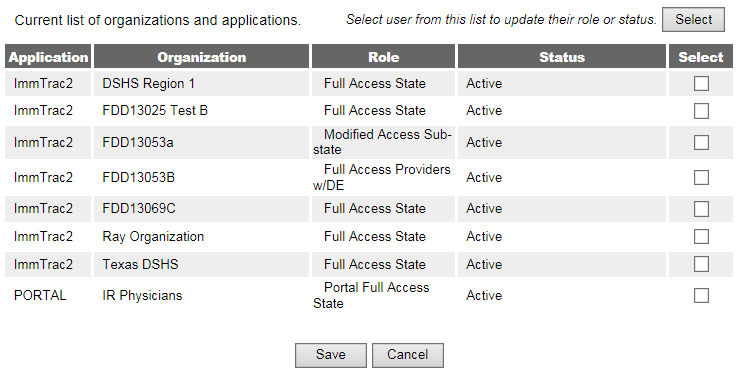
The list of all the Roles associated with the Organizations and their Status will be displayed.
|
Field Name
|
Description
|
|
Application
|
If an administrator has access to only one application, the application name will appear in a text box. If an administrator has access to more than one application, the applications will appear in a drop-down menu. Choosing an application from the list, will cause the organization list to refresh to only displays organizations for that application.
|
|
Organization
|
If an administrator has access to only one organization, the organization name will appear in a text box. If an administrator has access to more than one organization, the organizations will appear in a drop-down menu.
|
|
Role
|
A drop-down list containing all of the available roles the administrator can add.
|
|
Status
|
The current status of the user for the organization.
|
|

|
After selecting an application, organization type, organization, and a role, clicking Add will add the selections to current list of organizations and applications the user, whose account is being modified, has access to. Changes will not be recorded until Save is clicked.
|
|

|
Allows an administrator to change the selected role and status for the user's application/organization.
|
|
|
Records the changes to the user's applications/organization/roles in the database.
|
|
|
Discards any changes that have not been saved and return to the "Edit User" Search screen.
|
Removing user access to a particular application/organization combination will log off a user who is currently using the application under that organization, and will prevent the user from logging into that particular application and organization by removing the link from his/her list of available application/organizations. A removed user will appear separately on a list of views users as "Disabled" for that application/organization.
Add Access to Applications and Organizations to a User - is used to tie two functions together; Applications to an organization and Users to an Organization.
-
Select an application. If you have access to only one application, then it will be chosen for you.
-
Select an organization from the Search results field. If you have access to only one organization, then it will be chosen for you.
-
Select a role.
-
Click Add.
-
Click Save when finished with adding all application/organization/roles for this user.
-
The PORTAL role for the user will be added by default.
Change Access to Applications and Organizations for a User

-
Select the application/organization/role(s) you want to remove by clicking the check box.
-
Click the Select button. The screen will now display the application/organization/role and status above the list.
-
Choose a new role and/or status, then click the Update button.
-
Click Save to keep the changes.
Back to Top