|
Add Multiple Users |
|
Purpose |
The Add Multiple Users screen differs from the Add User screen in two ways:
Only the required fields are available for initial entry. When users are created on this screen, their status defaults to Active, and optional fields are initially left blank.
This screen combines the creation of User name-specific fields with the assignment of one application/organization. Because of this, the authorized user stays on this screen when a user is successfully added. (On the Add User screen, the authorized user is taken to the Modify Access screen to complete assignment of application / organization(s).
|
Field Name |
Description |
|
Application |
If an administrator has access to only one application, the application name will appear in a text box. If an administrator has access to more than one application, the applications will appear in a pick list. Choosing an application from the list, will cause the organization list to refresh to only display organizations for that application. |
|
Organization Type |
A drop down list containing all organization types. |
|
Region Selection |
The administrator will be able to view all the Regions in the drop down menu. |
|
Organization |
The organization which the user should be associated with. |
|
|
Clicking on Refresh will refresh the Add Multiple Users page by removing selections and allowing the user to start over. |
|
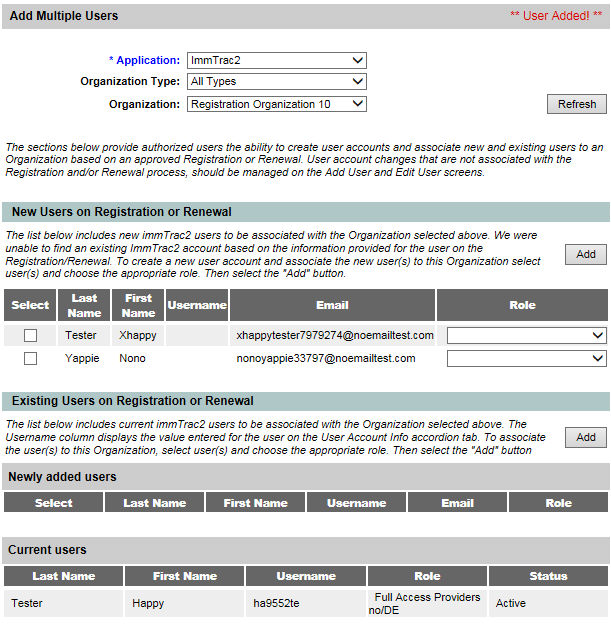
New Users on Registration or Renewal |
This section allows the administrator to add new ImmTrac2 users to organization that is selected above.
|
Existing Users on Registration or Renewal |
A list of users will be displayed.
|
Field Name |
Description |
|
Select |
Select the organization that the users will be associated with if an administrator has access to only one organization the organization name will appear in a text box. If an administrator has access to more than one organization, the organizations will appear in a pick list. |
|
Last Name |
Last name of the user to be added. Minimum length is 1; maximum length is 30. |
|
First Name |
First Name of the user to be added. Minimum length is 1; maximum length is 20. |
|
User Name |
This will be auto generated by the system. |
|
|
The user’s unique email address. The system will not allow for multiple users to have the same email address. |
|
Role |
A drop-down list containing all of the available roles the administrator can assign to the users being added. |
|
|
Clicking on Add will validate the information entered on the screen. Users will appear in the Newly Added Users table or, a message will appear at the top if there are missing required fields. |